Assista X comes with two ways to interact with your Odoo data — Normal mode and Analytic mode. While Normal mode is great for quick answers, Analytic mode is built for deeper thinking. This guide explains everything you need to know about Analytic mode and helps you decide when to use it.
What is Analytic Mode?
Analytic mode transforms Assista X from a data retrieval tool into a full business analyst.
In Normal mode, you ask a question and get an answer. In Analytic mode, Assista X doesn't just answer — it investigates. It pulls data from multiple parts of your Odoo system, cross-references findings, flags risks you didn't even ask about, and delivers a structured business report with every response.
Think of it this way: Normal mode is like asking a colleague to pull a report. Analytic mode is like having a senior consultant sit down, study the numbers, and walk you through what they mean.
Normal Mode vs Analytic Mode
To understand the difference, here's what happens when you ask the same question in each mode.
You ask: "Show me this month's top customers."
Normal mode responds with:
- A brief summary of the findings
- A chart (when relevant)
- A data table
Analytic mode responds with:
- A headline — the single most important insight from the data
- A key metrics table comparing numbers to the previous period
- At least 3 charts covering different angles (totals, trends, share breakdown)
- A complete data table
- A narrative explaining what the numbers mean for your business
- Risk flags — for example, if one customer makes up 80% of your revenue
- Recommended actions you can take directly inside Odoo
The difference isn't just in the output — Analytic mode also works differently behind the scenes. Before it fetches any data, it loads a specialist analysis guide for the relevant Odoo module and builds a full query plan. This means every response is more thorough, more structured, and more actionable.
When Should You Use Analytic Mode?
Analytic mode is powerful, but it isn't meant for every question. Here's a simple guide.
Switch to Analytic mode when:
- You're doing a monthly or quarterly business review
- You want to understand what the numbers actually mean, not just see them
- You need a cross-module view — for example, sales performance alongside outstanding invoices
- You want risks and anomalies surfaced automatically
- You're preparing a report or need a structured summary to share with your team
Stick with Normal mode when:
- You need a quick answer — "how many units do we have in stock?"
- You're asking a straightforward question with a direct answer
- You want faster responses
- You're mindful of API token costs
A good rule of thumb: if the answer fits in one sentence, use Normal mode. If you need to understand a situation and decide what to do next, switch to Analytic mode.
How to Turn On Analytic Mode
Analytic mode is controlled by the brain icon on the left side of the chat input bar at the bottom of the screen.
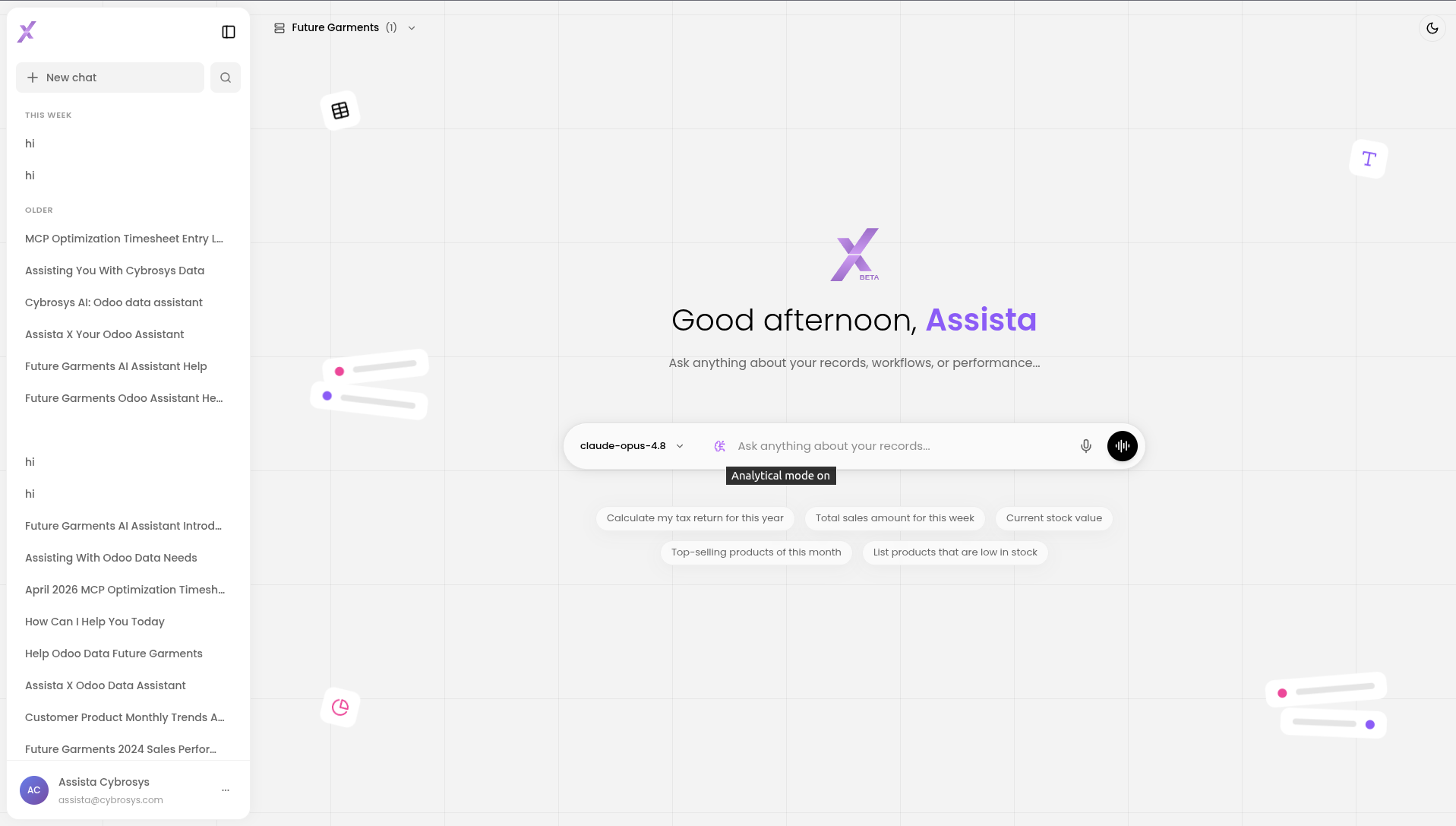 The brain icon sits on the left side of the message input bar
Click the brain icon to turn Analytic mode on. The icon will light up to confirm it is active.
When active, the brain icon appears highlighted
The brain icon sits on the left side of the message input bar
Click the brain icon to turn Analytic mode on. The icon will light up to confirm it is active.
When active, the brain icon appears highlighted
Click it again to switch back to Normal mode. You can toggle between modes at any point in a conversation — the change takes effect from your next message onwards.
What Does Analytic Mode Cost?
Analytic mode uses more tokens than Normal mode. Here is why.
Every time you send a message in Analytic mode, Assista X runs two extra steps before touching your Odoo data:
- It fetches an analyst skill guide for the relevant module (sales, accounts, inventory, etc.)
- It builds a detailed query plan — listing every model to query, every KPI to compute, and every risk condition to check
Only after these two steps does it begin fetching your data. This makes responses more accurate and thorough, but it also means more tokens are consumed per message.
On top of that, Analytic mode always generates a minimum of 3 charts and produces longer, more detailed responses.
As a rough estimate, Analytic mode uses 2–4× more tokens than Normal mode per message.
Tip: Reserve Analytic mode for reviews and deep-dive analysis. For day-to-day lookups, Normal mode gives you fast answers at a fraction of the cost.