Assista X works with multiple AI providers. This guide walks you through selecting and configuring your preferred provider so Assista X can process your Odoo queries.
Supported AI Providers
Assista X supports three AI providers:
| Provider | Best For | Cost |
|---|---|---|
| OpenAI | General use, high accuracy | Paid (usage-based) |
| Anthropic (Claude) | Reasoning, long context | Paid (usage-based) |
| OpenRouter | Access 100+ models via one key | Free tier available |
If you are just getting started and don't have an API key, OpenRouter offers a free tier with access to several capable models — no billing required.
Step 1: Open Settings
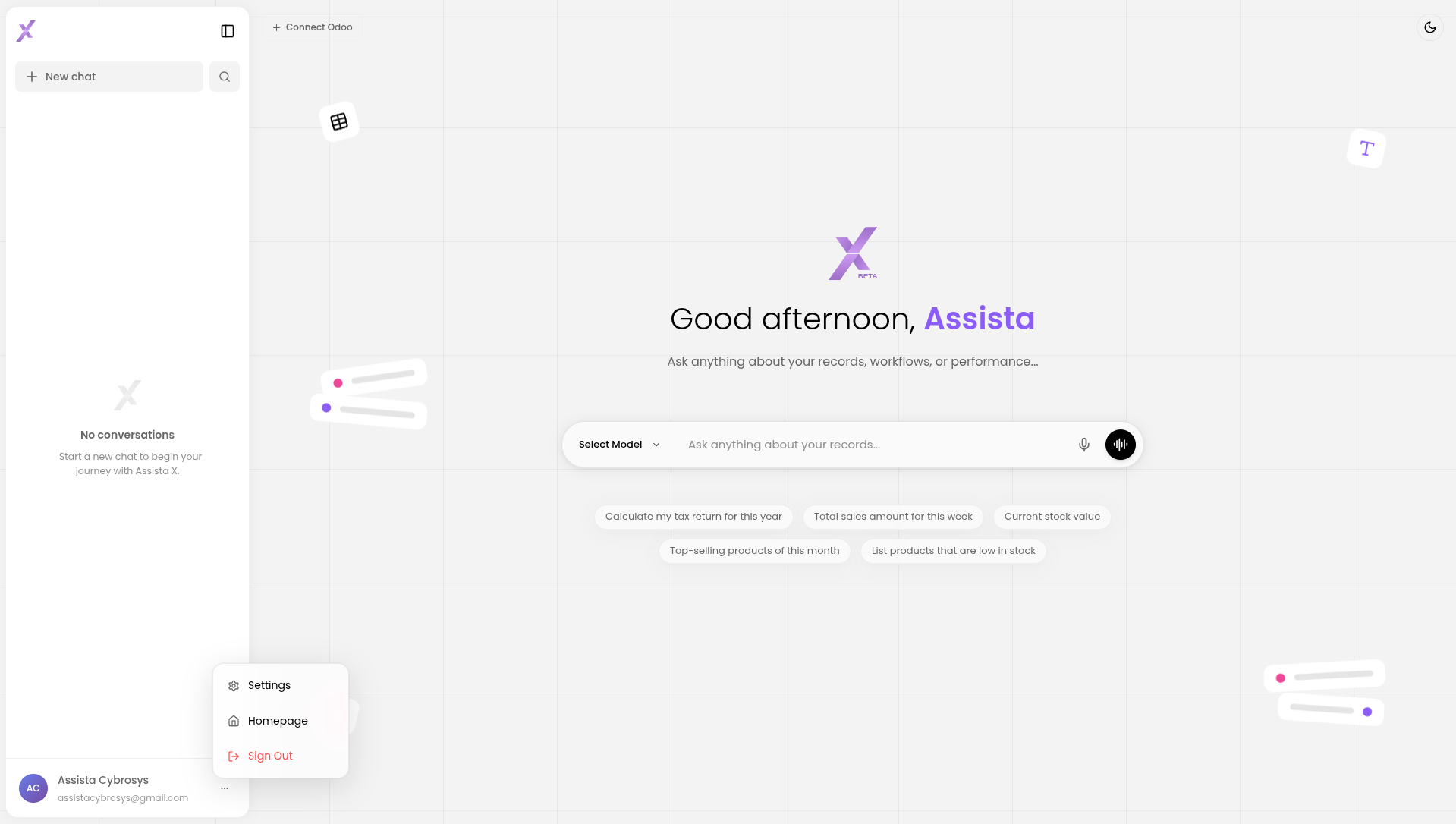
After logging in, click the three-dot icon at the bottom of the left sidebar, then select Settings from the menu.
Step 2: Go to Provider Tab
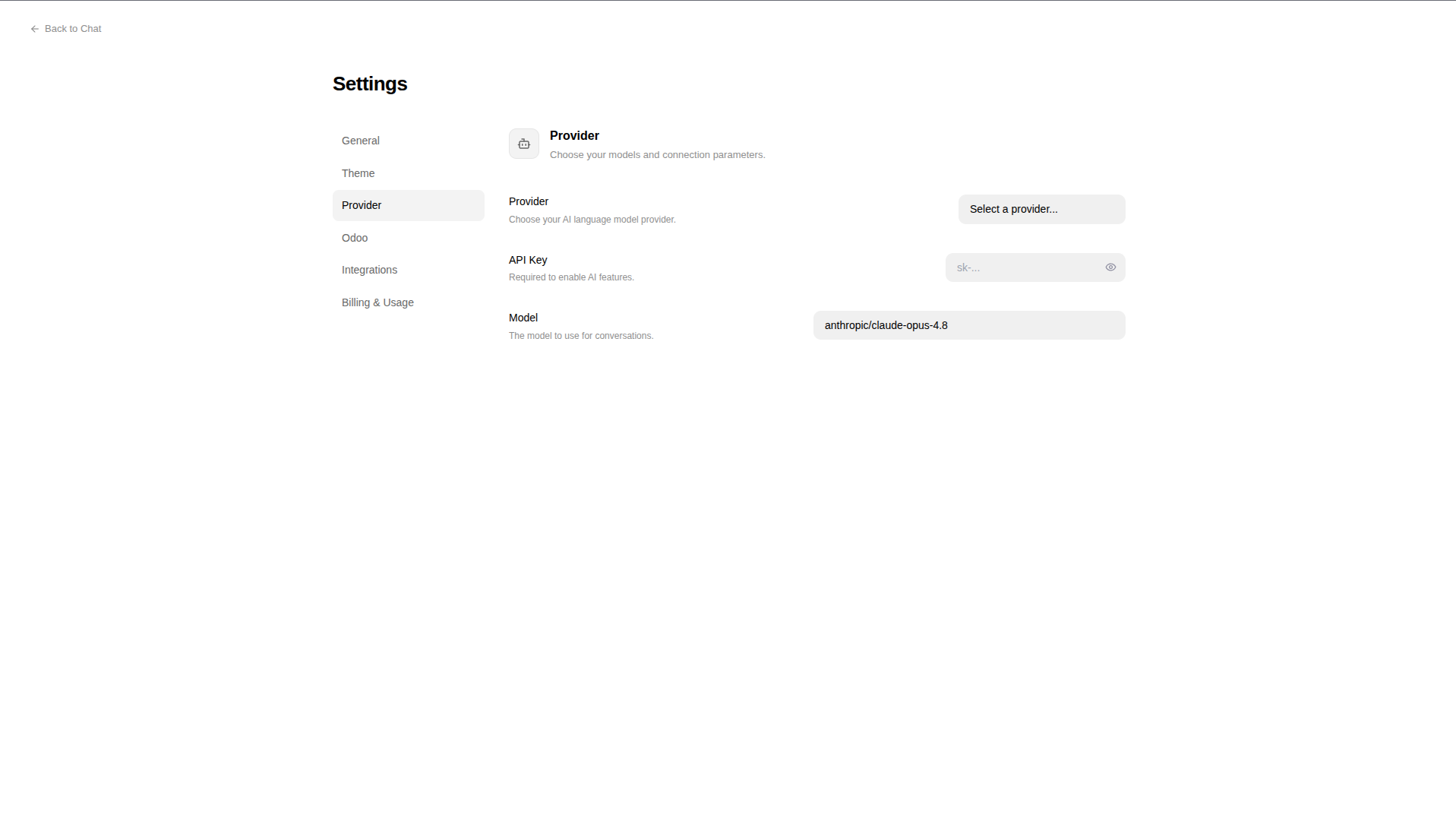
Inside the Settings Page, click the Provider tab.
Step 3: Select Your Provider
Click the Provider dropdown and choose your preferred AI provider.
Step 4: Enter Your API Key
Paste your API key into the API Key field.
Getting your API key
OpenAI
- Go to platform.openai.com
- Click your profile → API Keys
- Click Create new secret key
- Copy immediately — shown only once
Anthropic
- Go to console.anthropic.com
- Navigate to API Keys
- Click Create Key and copy
OpenRouter (recommended for beginners)
- Go to openrouter.ai
- Sign in → Keys → Create Key
- Free tier available — no credit card needed for free models
Step 5: Select a Model
After entering your API key, the Model dropdown loads available models for your chosen provider.
Step 6: Save
Click Save to apply the configuration.
If the API key is invalid, you will see an error. Double-check the key has no extra spaces and is active in your provider's dashboard.
Step 7: Verify It Works
Go to chat and send a simple message:
Hi