How to Connect Your Odoo Server to Assista X
Assista X needs access to your Odoo instance to query your business data. You can add server credentials in two places: directly from the chat page or through Settings.
Security Recommendation: Use an Odoo API Key instead of your account password. API keys can be revoked independently without changing your password, and they reduce exposure if credentials are ever leaked. Password-based authentication is supported, but it is not recommended.
Method 1: From the Chat Page
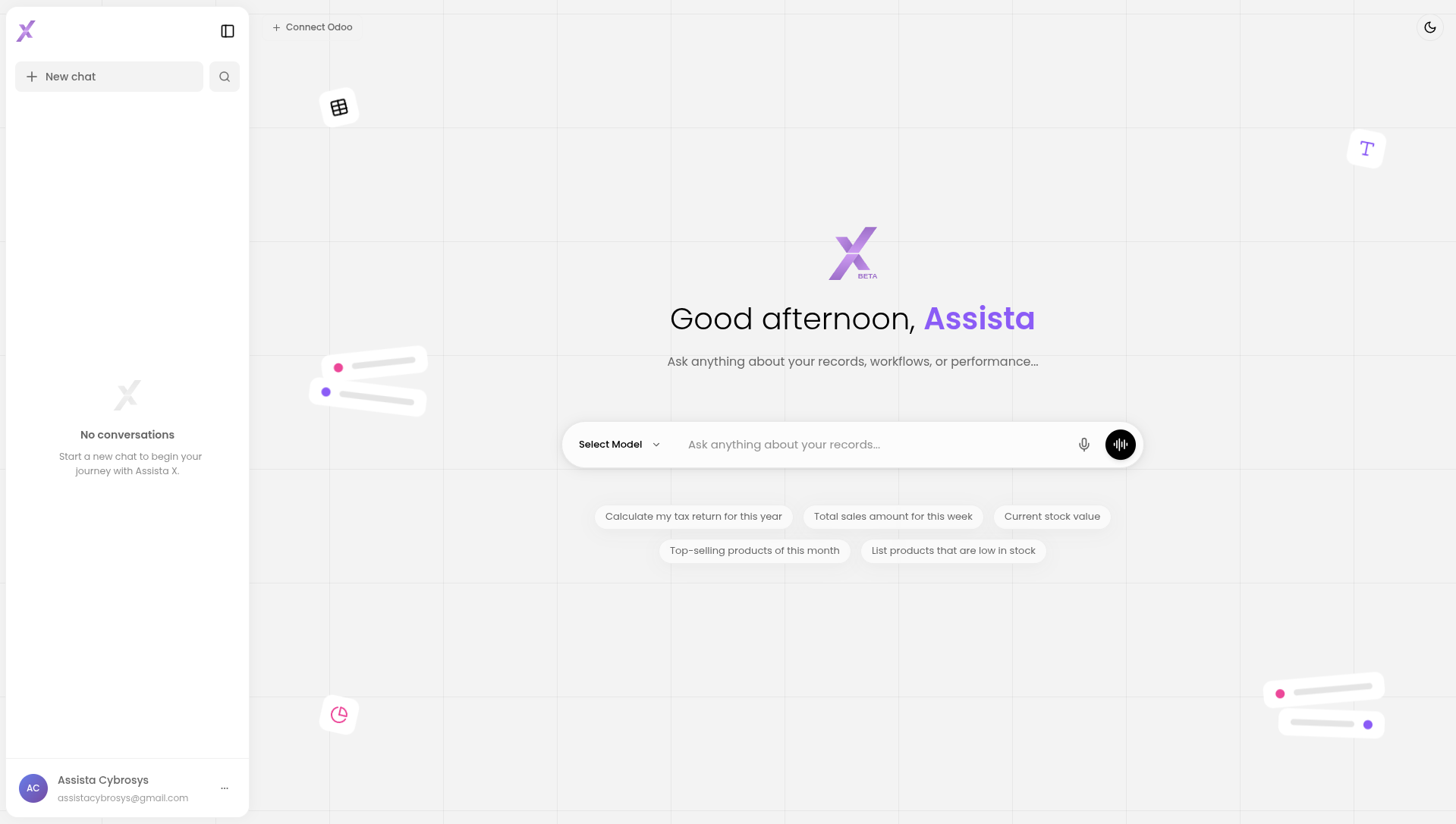
When no Odoo server is connected, a Connect Odoo button appears in the top navigation bar. Click it to open the server form directly without leaving the chat.
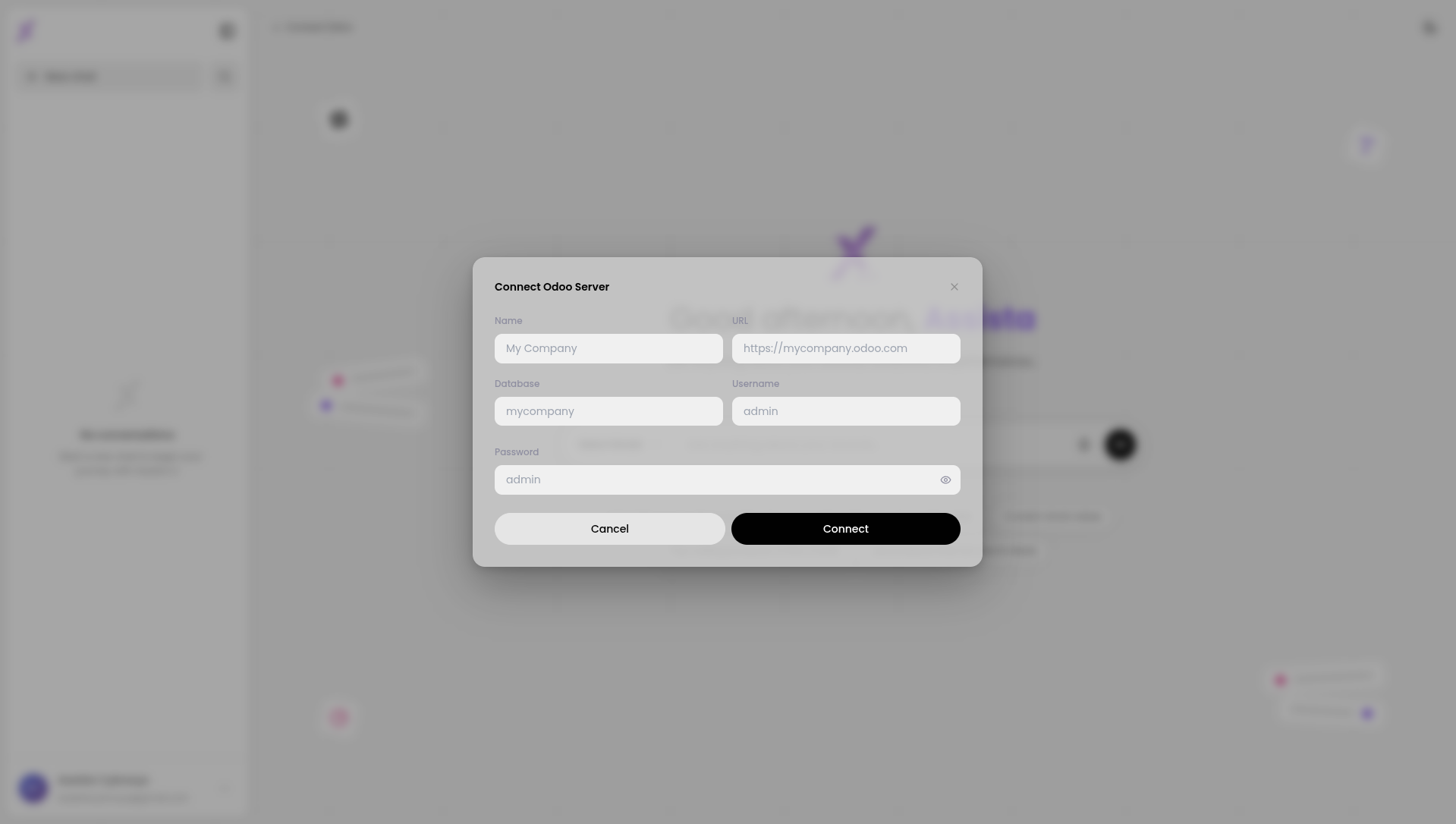
Fill in your server details and click Save. Assista X will verify the connection before saving it.
Once connected, the button is replaced by your server name in the navbar.
Method 2: From Settings
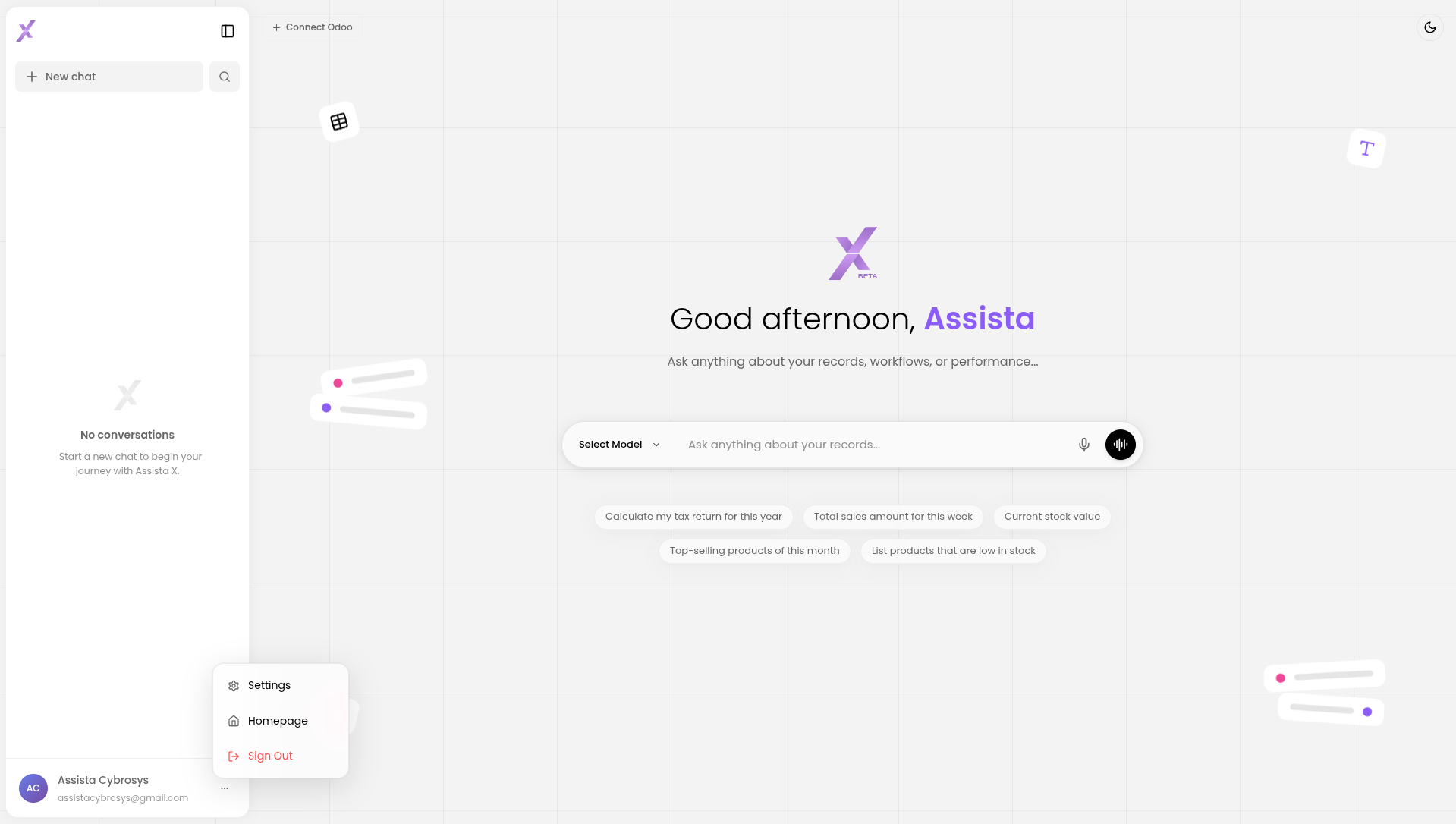
- Open the Sidebar (hamburger icon in the top-left on mobile; always visible on desktop).
- Click Settings at the bottom of the sidebar.
- Go to the Odoo tab.
- Click Add Server.
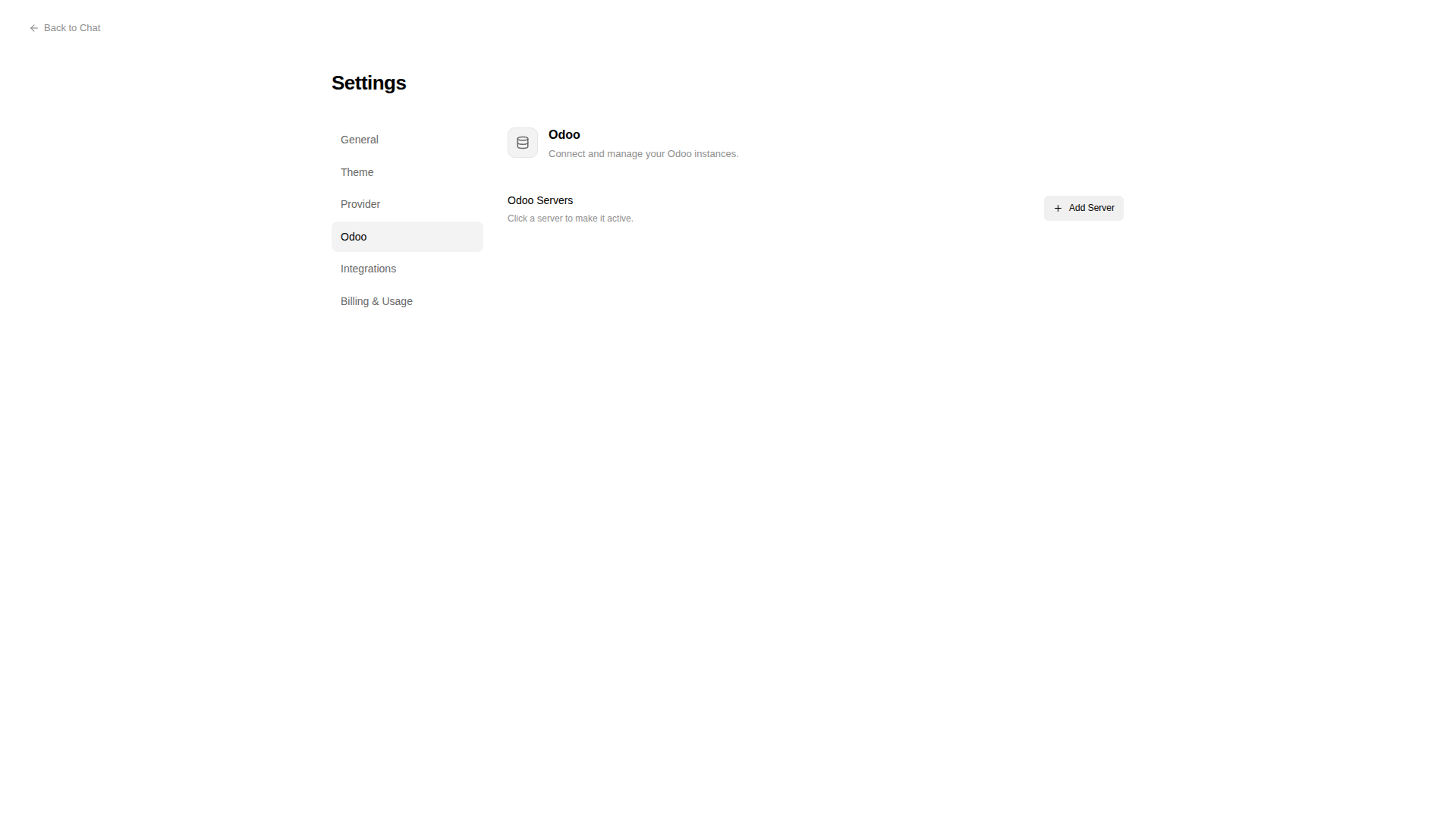
- Fill in your server details and save.
You can add multiple servers here and manage or remove existing ones.
Server Configuration Fields
| Field | Description |
|---|---|
| Name | A label for this server — for example: Production or My Company |
| Server URL | Full URL of your Odoo instance — for example: https://mycompany.odoo.com |
| Database | Odoo database name (visible in Odoo under Settings → General Settings) |
| Username | Your Odoo login email |
| API Key | Recommended — generated in Odoo under your user profile |
| Password | Your Odoo account password — use only if API keys are unavailable |
Generating an API Key in Odoo
- Log in to your Odoo instance.
- Go to Settings → Users & Companies → Users.
- Open your user profile.
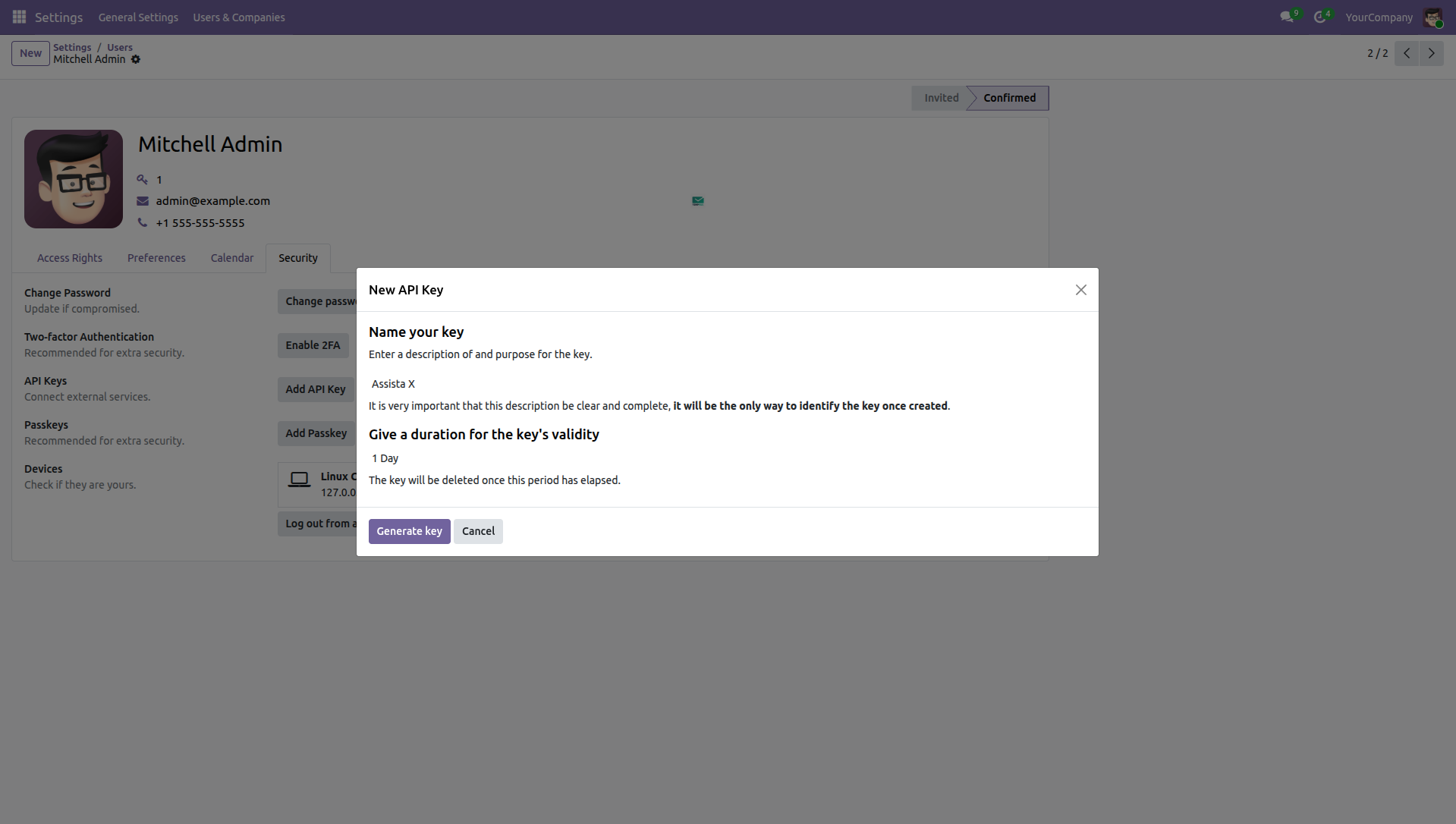
- Scroll to API Keys and click New API Key.
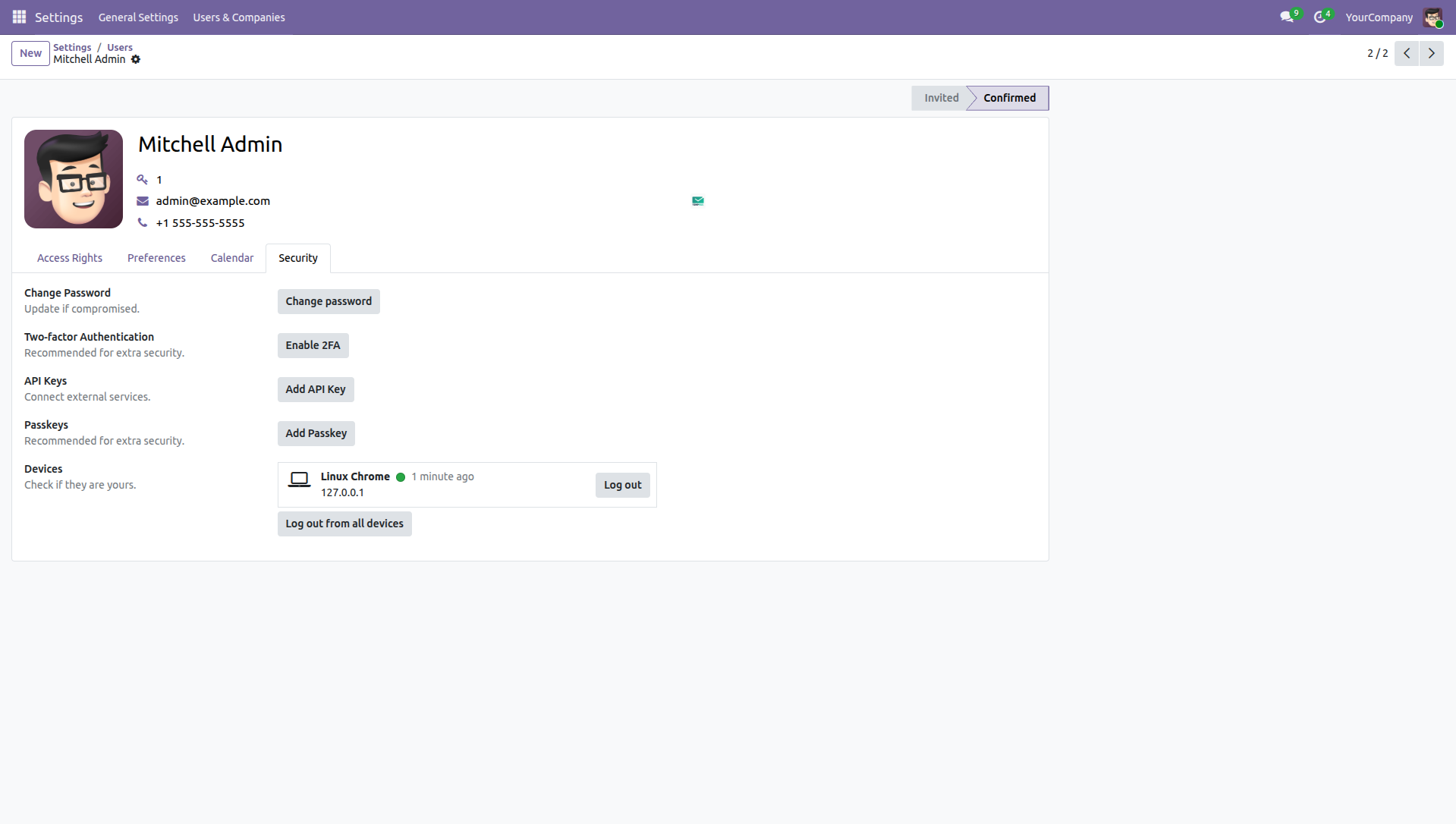
- Give it a name (for example:
Assista X) and copy the generated key.
- Paste it into the API Key field in Assista X.
Note: Odoo shows the API key only once during creation. Copy it before closing the dialog.
Switching Between Servers
If you have multiple servers configured, click the server name in the top navigation bar.
A dropdown appears where you can switch the active server or edit its details.
Connection Troubleshooting
If the connection test fails:
- Check that the Server URL does not contain a trailing slash.
- Confirm that the Database name is exact and case-sensitive.
- Verify that the API key or password is correct and that the account is active.
- Ensure your Odoo instance is publicly reachable and not blocked by a firewall or VPN.